How to Configure your Zoho Mail Account as IMAP in iPhone/ iPad
By Aylmer Ametewee on December 9, 2024
BeginnerHow to Configure your Zoho Mail Account as IMAP in iPhone/ iPad
Table of contents
Configure your Zoho Mail Account as IMAP in iPhone/ iPad
- Ensure that IMAP Access is turned on for your account. (Login to Zoho Mail >> Settings >> POP/ IMAP >> Enable IMAP). (Ignore step 1 above, as is already done by us)
- In your iPhone, Tap Settings >> Mail, Contacts and Calendar >> Add Account and choose Other.
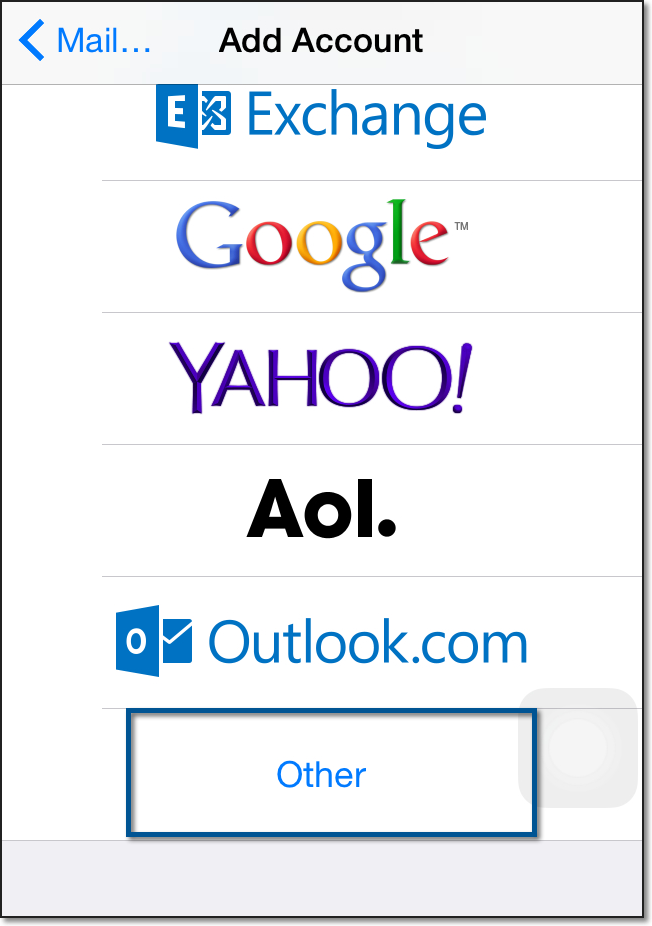
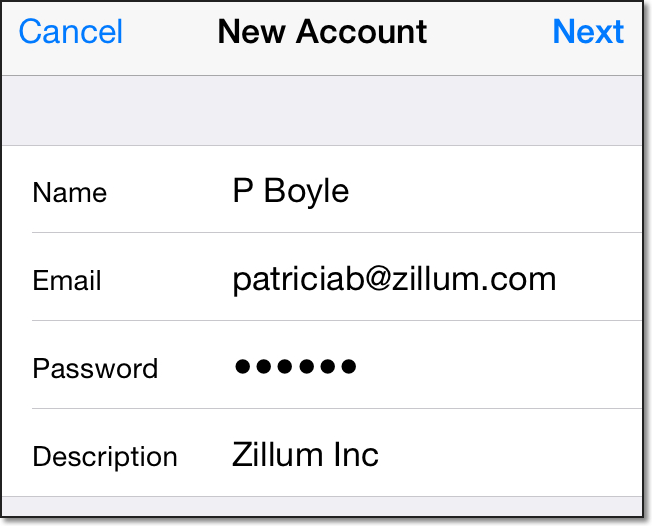
- Provide your Name, Email Address, Password and a short description to the account. Tap Next
- If Two Factor Authentication is enabled for your account, provide Application Specific Password to configure the account.
- In the next screen, ensure that IMAP is selected in the top for account type. To configure your account as POP in your iPhone, refer here for configuration details to be used.
- In the Incoming Mail Server section, provide the details below.
- Hostname : imap.zoho.com
- Username : Your Zoho Email Address
- Password : Your account password. (You may require Application Specific password to set up the account in other devices if Two Factor Authentication is enabled for your account)
- In the Outgoing Mail Server section, provide the details below
- Hostname : smtp.zoho.com
- Username : Your Zoho account email address (user@yourdomain.com)
- Password : Your Zoho Password (You may require Application Specific password to set up the account in other devices if Two Factor Authentication is enabled for your account)
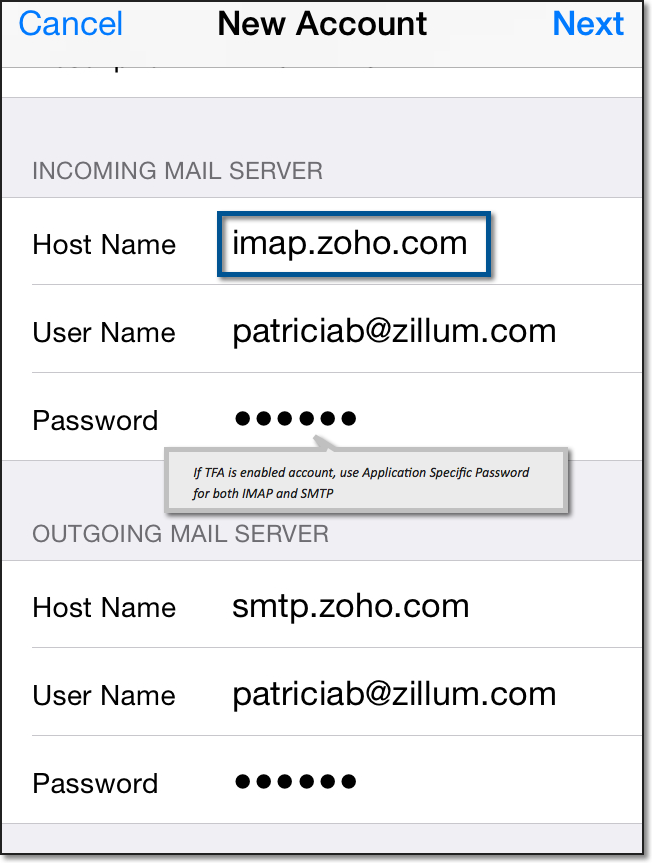
- The device connects to the IMAP server and authenticates the credentials provided by you. On successful authentication, the IMAP account is set up on your mobile device.
- Troubleshooting IMAP Configuration in iPhone
Incoming Emails not getting synced:
1. In case you are unable to connect to the IMAP server [imap.zoho.com](http://imap.zoho.com), you may check the Advanced settings of the Incoming Server. Tap iPhone Settings >> Mail, Calendar and Contacts >> Tap the account2. Scroll down and Tap Advanced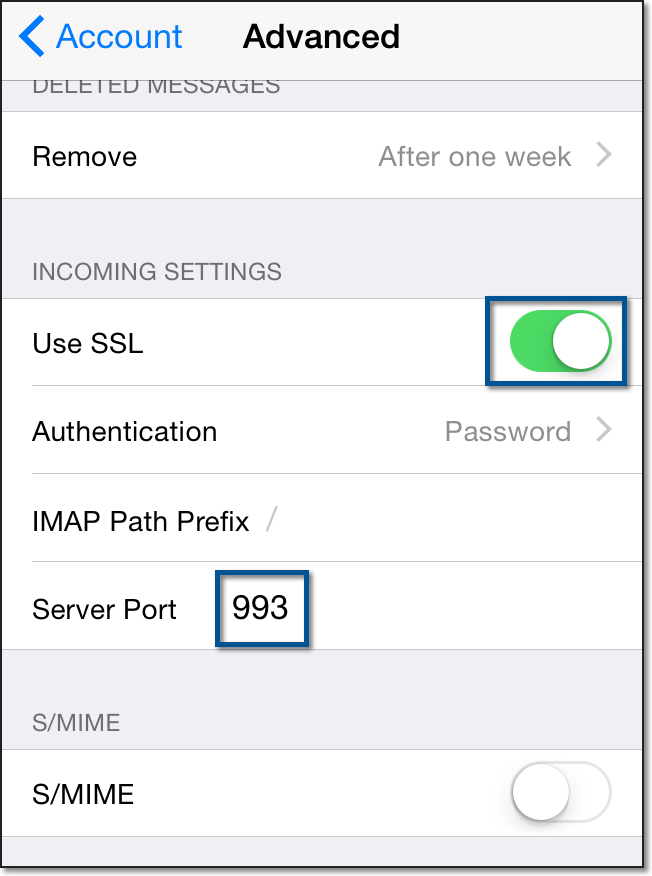3. Make sure that Use SSL is turned on and the port number is 993.**Outgoing emails:**
Error Message: Relaying Disallowed
1. iPhone Settings >> Mail, Calendar and Contacts >> Select the account configured2. Check if you have provided the email address without any typos.3. The email address mentioned should be either the main email address or email alias of the account being configured.**Error Message: Unable to send message. Cannot connect to** [**smtp.zoho.com**](http://smtp.zoho.com)1. iPhone Settings >> Mail, Calendar and Contacts >> Select the account configured2. Scroll down and select "**SMTP**" to check the SSL and Port details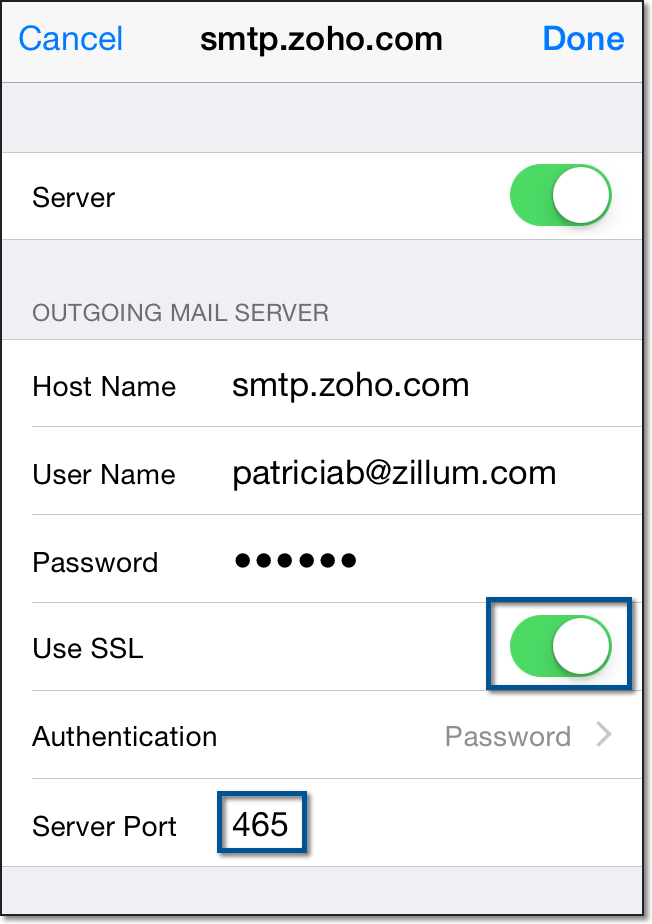3. Ensure that Use SSL is turned on and the SMTP port is set to 465.
Was this article helpful?
More articles on General