How to use prepared report in erpnext
By Silas Kwarteng on December 11, 2024
BeginnerMany times when generating a report that deals with a large volume of data, say, a GL report for the entire year, you may end up getting the following error message: **Request Timed Out**. This occurs as there is a lot of data to be processed and presented on the report page, but not enough server resource hence resulting in a time out.
For better processing of such reports, ERPNext offers Prepared Reports (since v11). When a report is set as a Prepared Report, it is generated through a [background job](https://frappe.io/docs/v13/user/en/guides/app-development/running-background-jobs), and once ready, is available for users to view
How To Use A Prepared Report
----------------------------
1. Open said report (say General Ledger) and apply all filters needed.
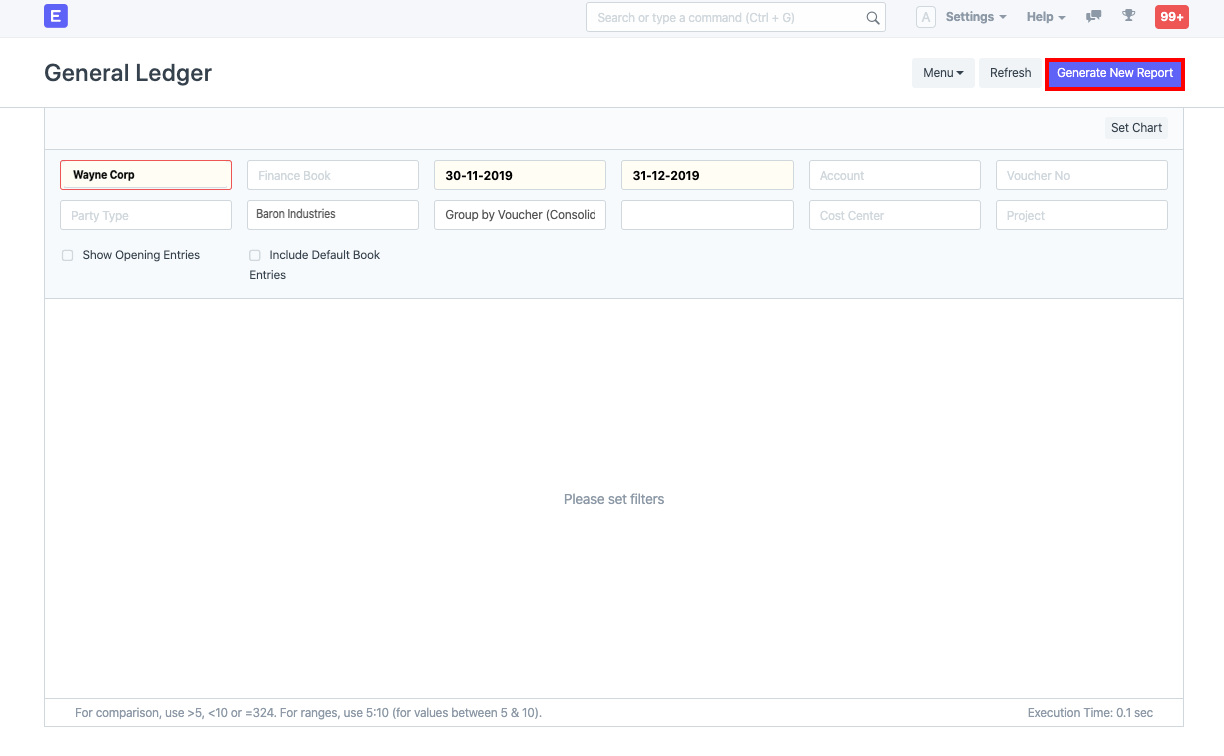
2. If the prepared report option is enabled for that report, you will see a **Generate Report** button. Click on the same.
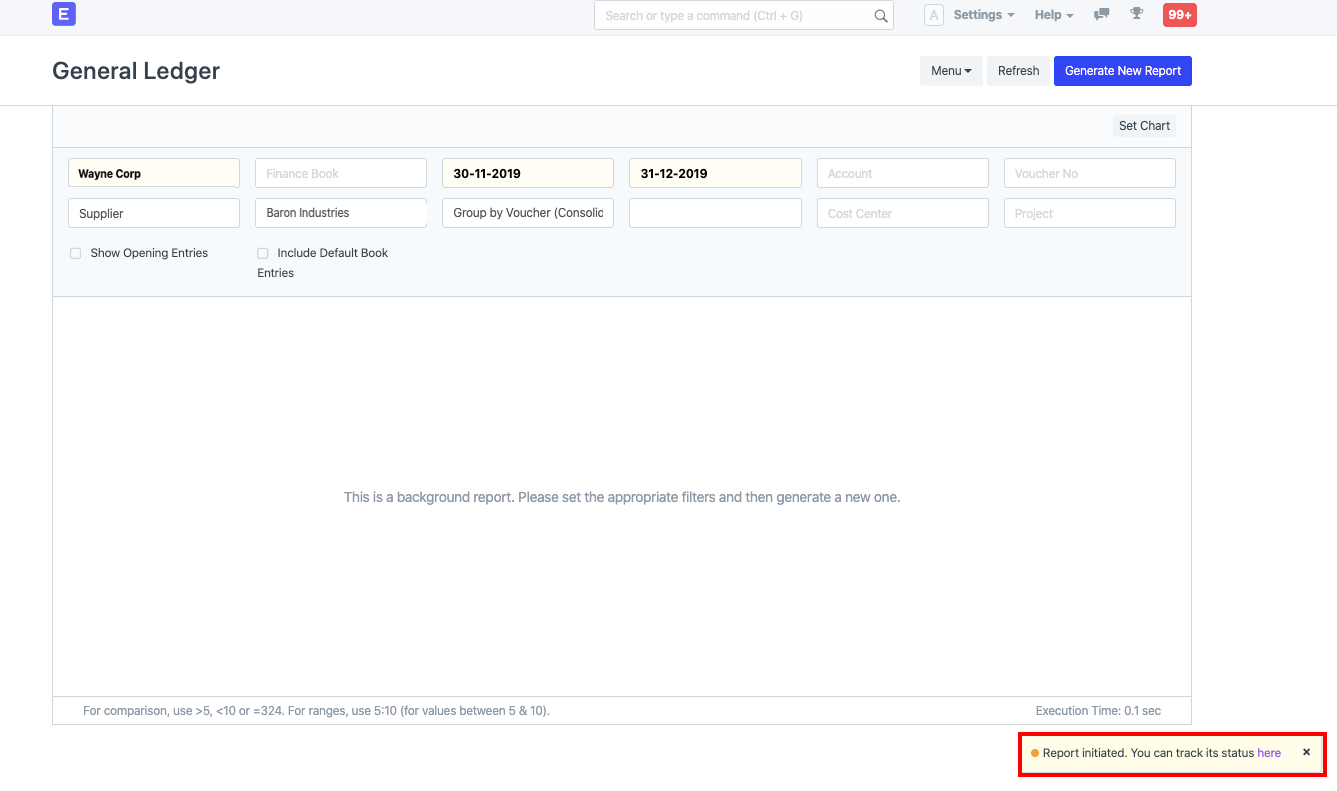
3. You will see a notification on the bottom-right of the screen saying "Report initiated. You can track its status *here*"
4. You can either wait on the said screen or click on *here* in the above message to open the page for the report. This will open a new page for the report:
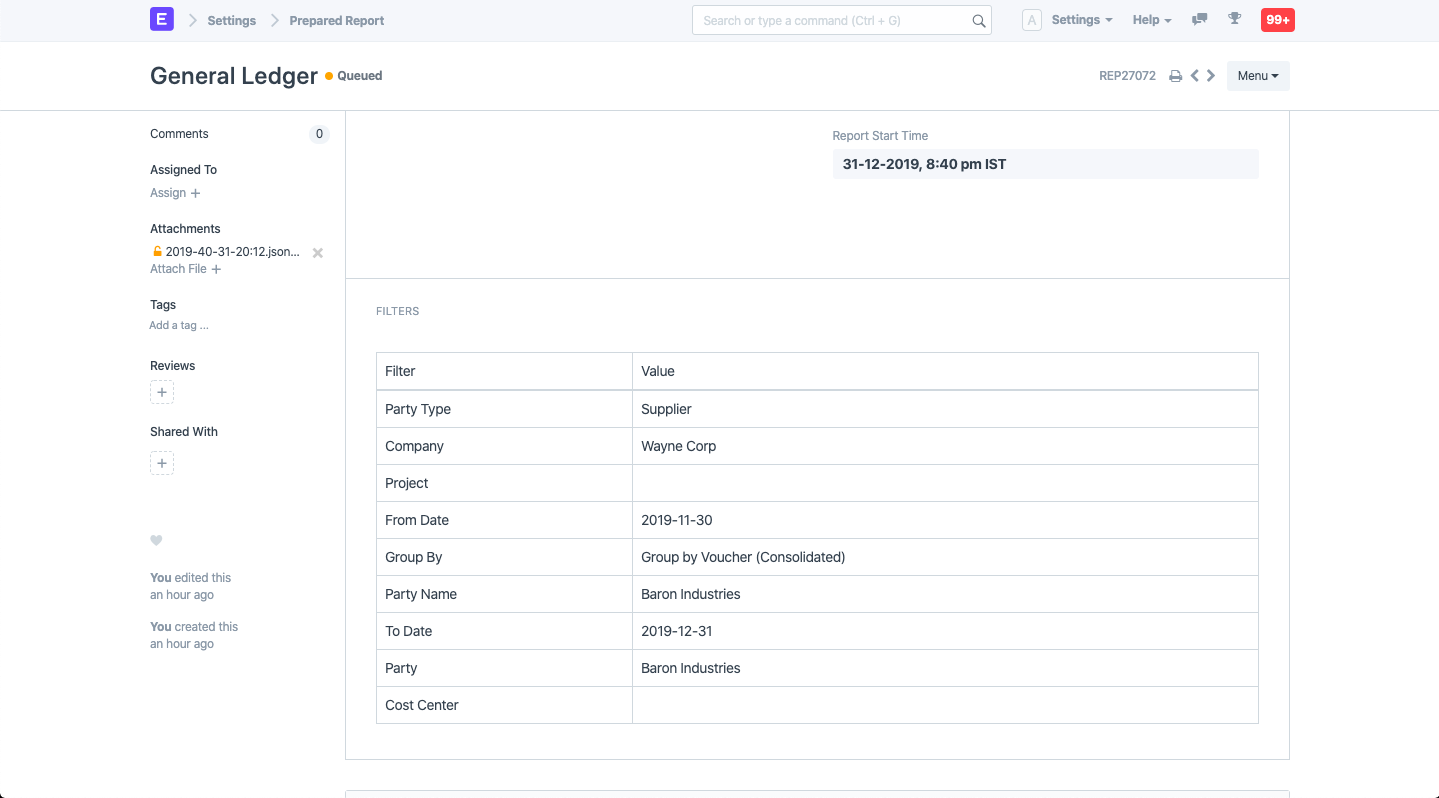
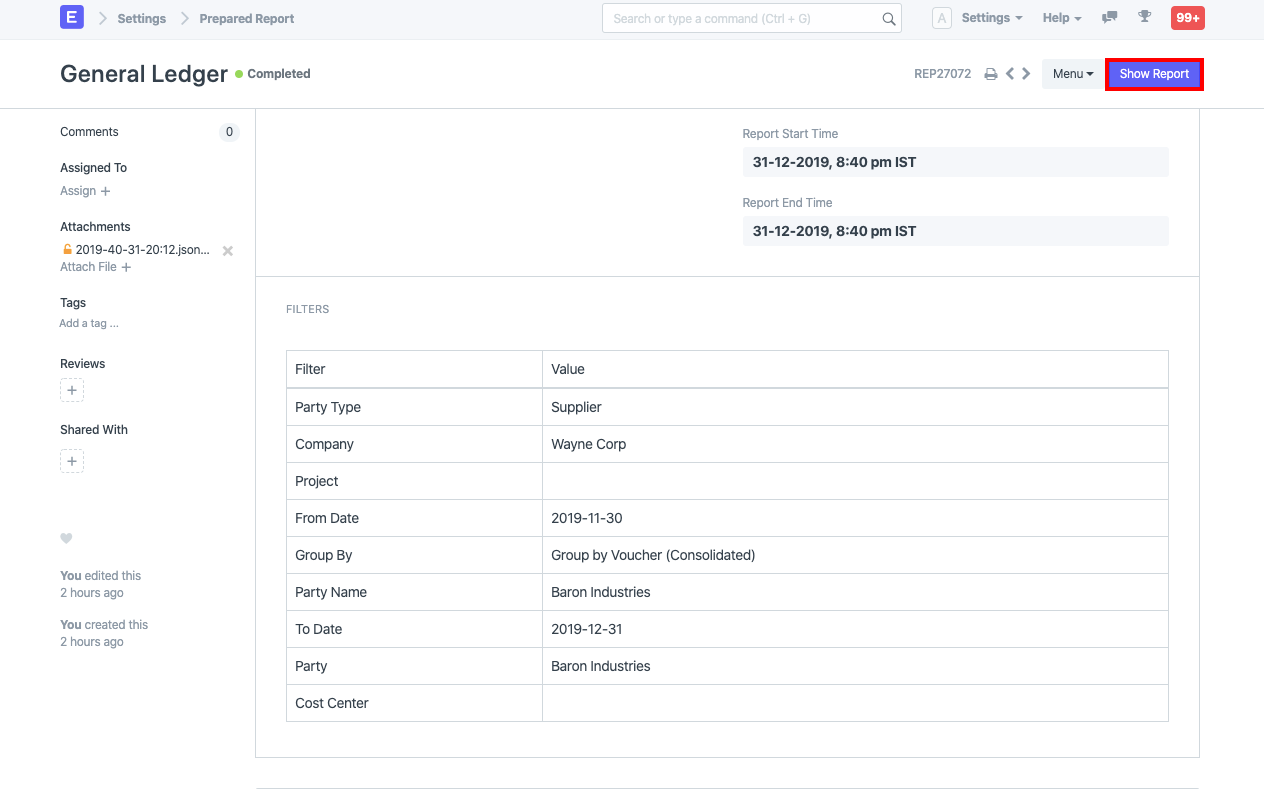
As you see, the report page has status as "Queued". Once the report is ready, you will see a **Show Report** button which you can click to view the report:
 5. Since Prepared Report is also a doctype, to view the list of Prepared Reports, you can use the [Role Permission Manager](https://docs.erpnext.com/docs/v13/user/manual/en/setting-up/users-and-permissions/role-based-permissions) to grant access to the same.
More articles on Erpnext