Managing Withholding Tax in ERPNext
By Lucas Binnah Koomson on March 26, 2026
BeginnerWithholding tax in ERPNext can be applied during payment in ERPNext through the Payment Entry.
This guide explains how to configure this to work correctly.
1. Initial Setup: Create Purchase Tax and Charges Templates
Before processing transactions, you must first define your withholding taxes in the ERPNext.
Steps:
- Go to the Purchase Taxes and Charges Template (Purchasing) or Sales Taxes and Charges Template (Sales).
- Create templates for each applicable withholding tax.
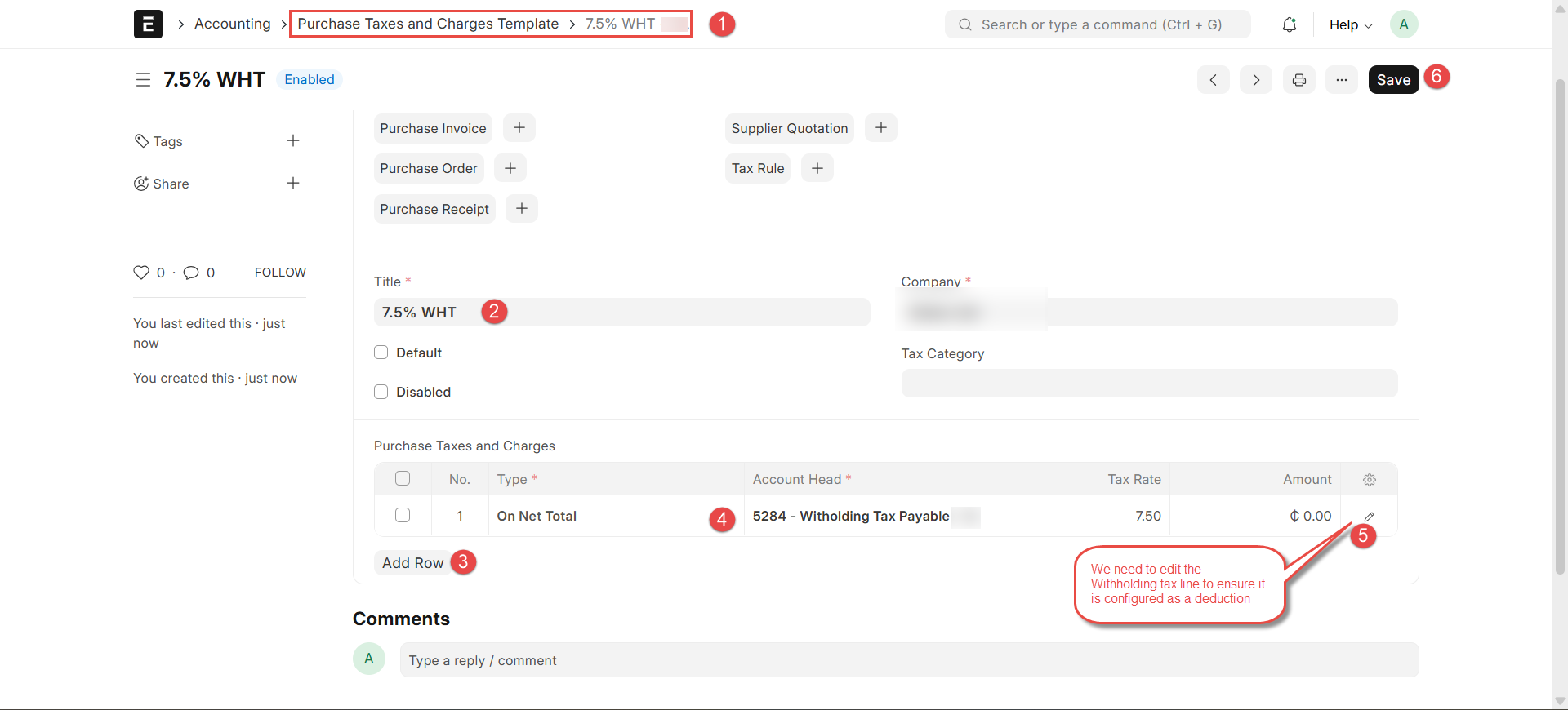
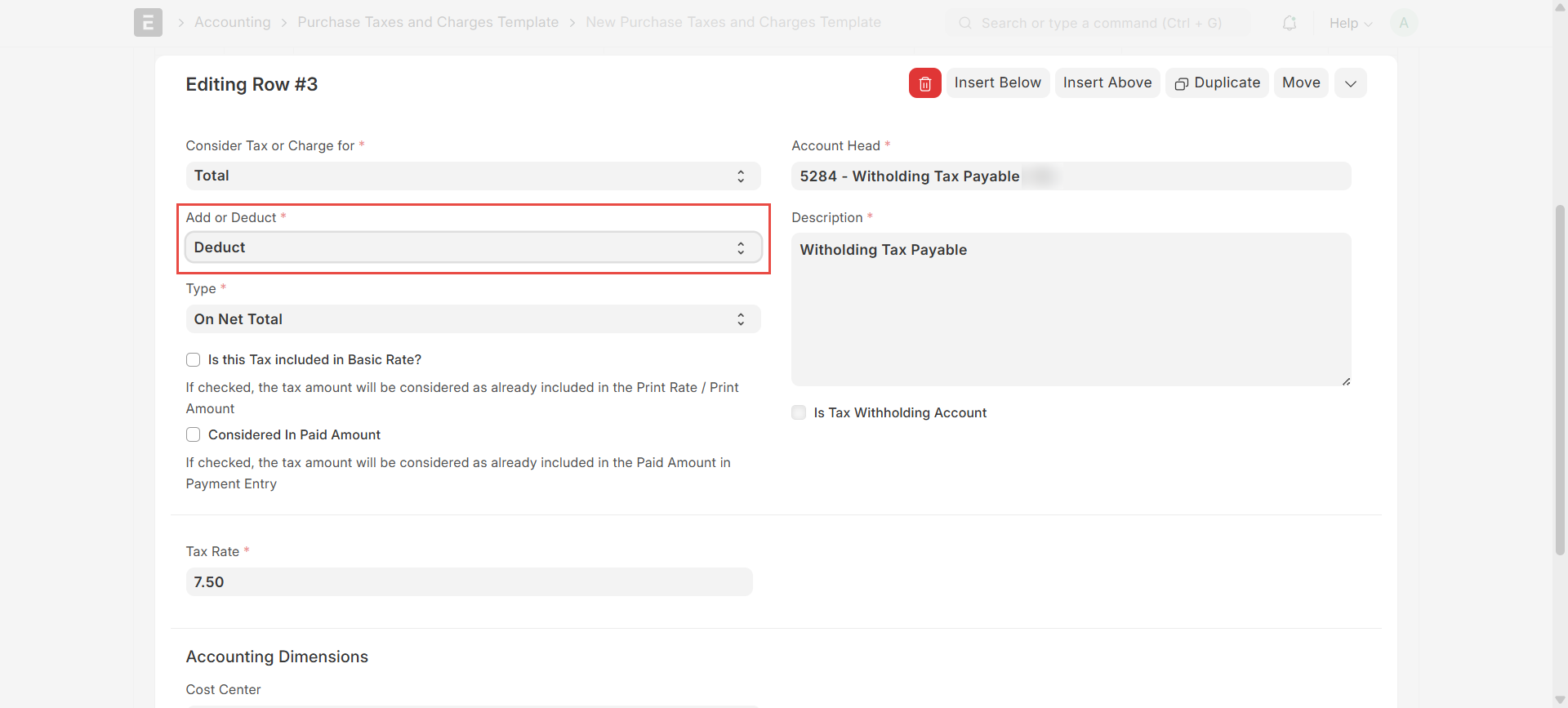
- Ensure the tax is configured as a deduction (i.e., it reduces the payable).
💡 Note:
- These templates will be used during payment.
- In the Sales Tax and Charges Template, enter a negative tax rate instead for the withholding component because we do not have the option to select "deduct." Eg. -7.5
- The same can be done for the purchase tax if you prefer a negative tax rate. This means you would have to maintain the ”Add” option.
2. Withholding Tax Application During Payment Entry
- When creating a payment entry, enter the paid amount
- Apply the relevant Taxes and Charges Template (with withholding tax) in the payment entry.
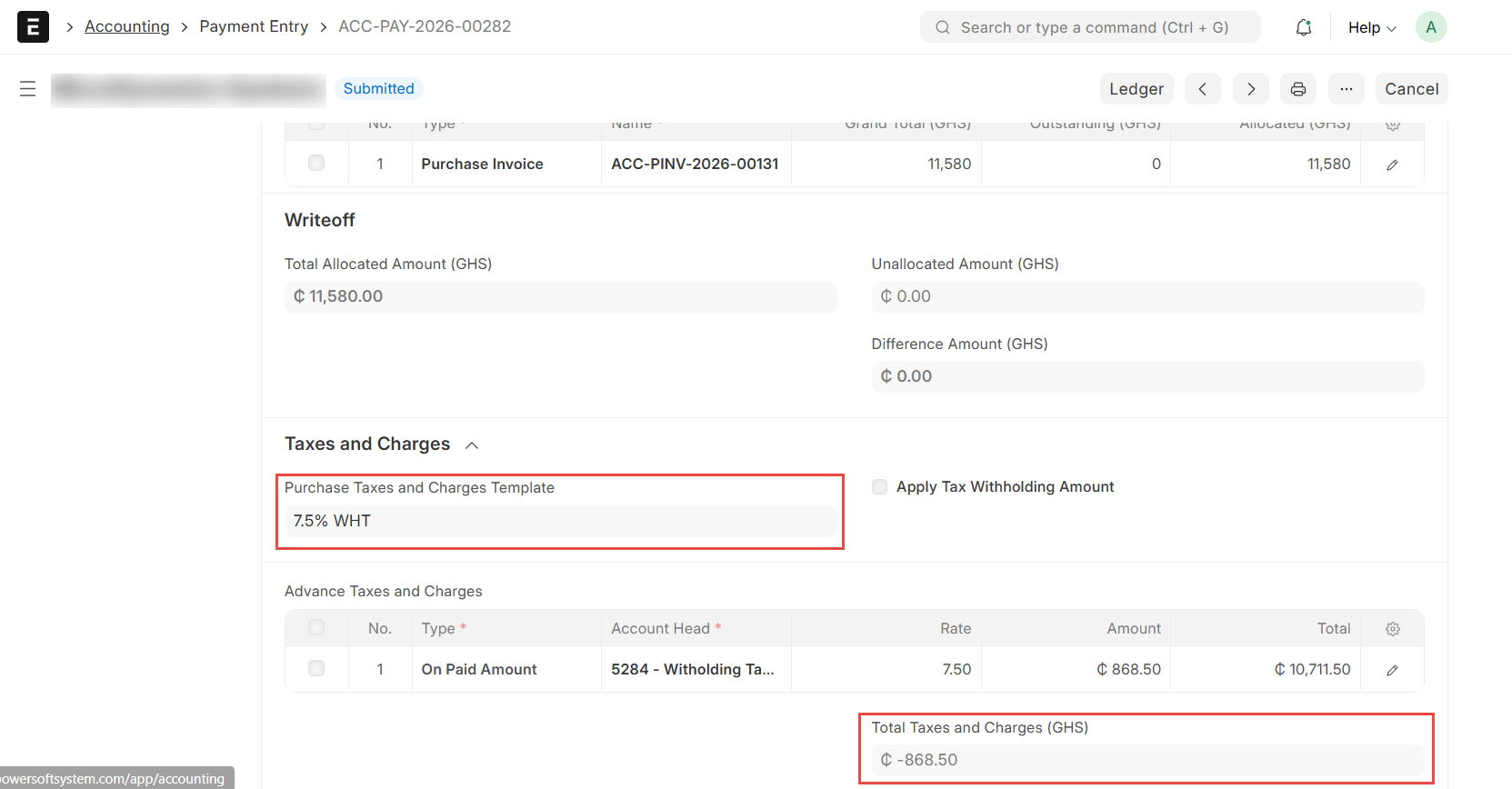
Result:
- The system deducts the withholding tax from the payment.
- The supplier receives the net amount, while the withheld portion is recorded separately.
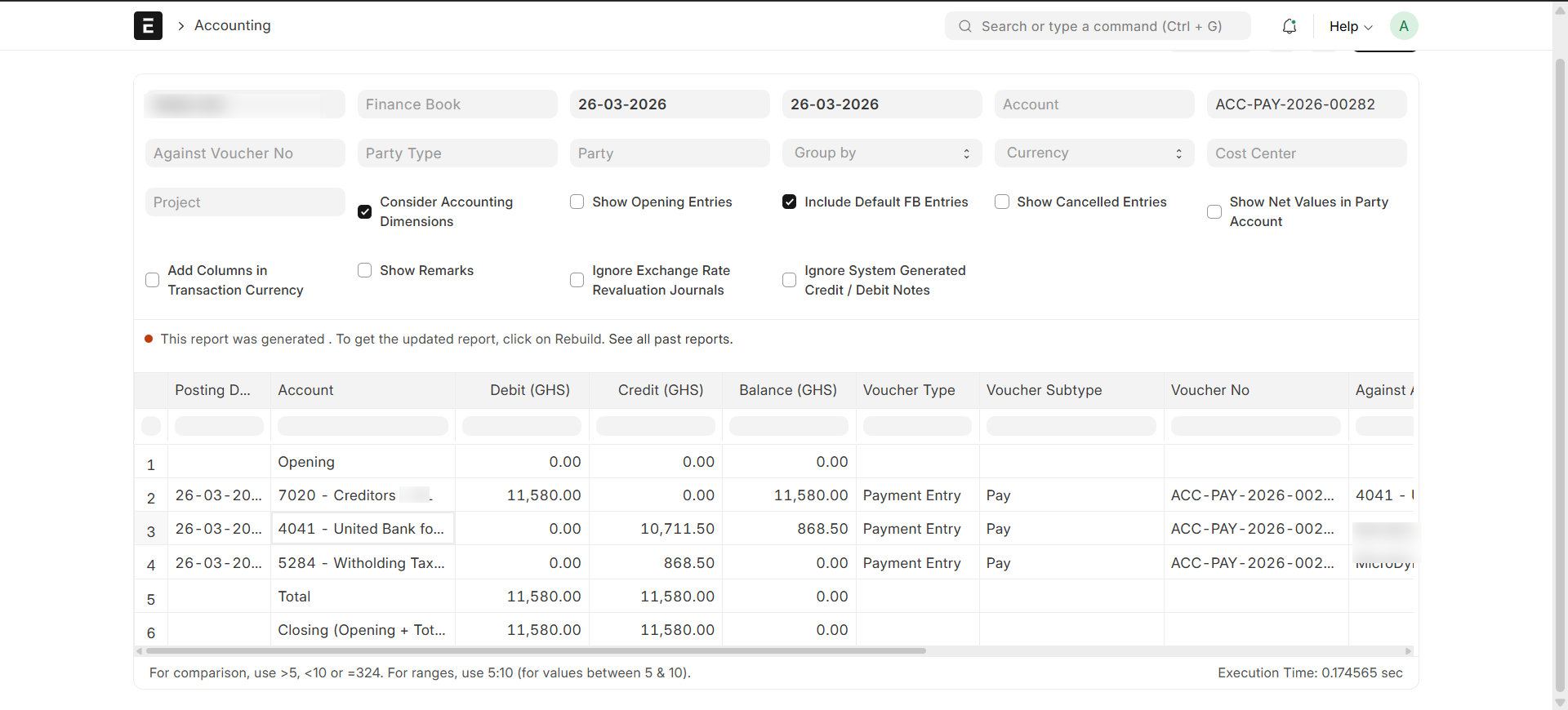
3. Important Notes
- The same process applies to customer payments received.
- Always ensure:
- The correct tax template is selected.
- The withholding tax account is properly mapped in the template.
Was this article helpful?
No comments yet. Login to start a new discussion Start a new discussion