How to Update Items in a Submitted or Approved Purchase Order in ERPNext v15
By Bright Lartey on February 5, 2026
IntermediateERPNext v15 introduces an Update button on submitted documents, including Purchase Orders, allowing users to make controlled changes such as adding or removing items, adjusting quantities, and changing rates—without cancelling or amending the document.
This feature is designed to simplify revisions while still maintaining system integrity.
Understanding the Update Feature in ERPNext v15
Once a Purchase Order is Submitted or Approved, ERPNext v15 allows limited updates through the Update action.
Using this feature, you can:
- ✅ Add new line items
- ✅ Remove existing line items
- ✅ Update item quantities
- ✅ Update item rates
These changes are applied in a controlled manner and logged by the system.
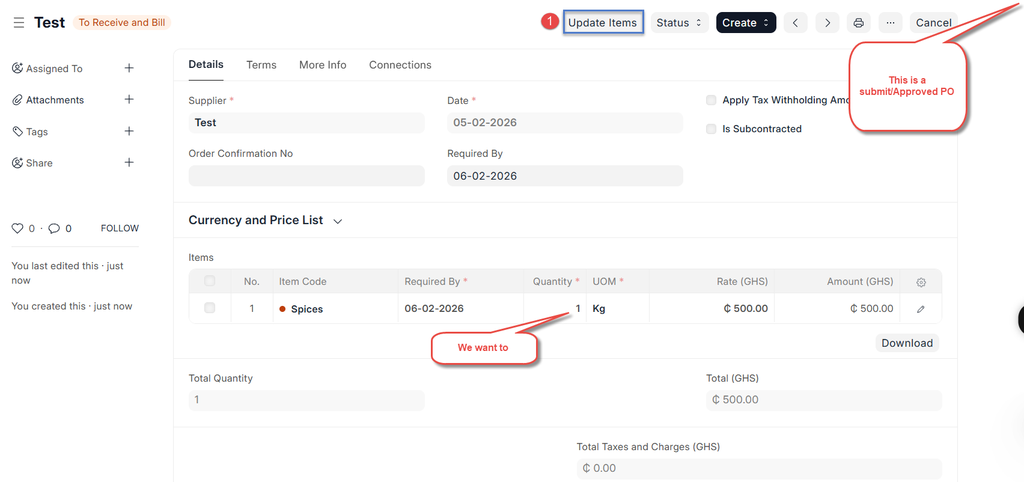
When the Update Button Is Available
The Update button appears when:
- The Purchase Order is Submitted (DocStatus = 1)
- The PO is not fully received or invoiced
- The user has sufficient permissions
- The document is not locked by workflow or settings
Steps to Update Items on a Submitted Purchase Order
Step 1: Open the Submitted Purchase Order
Navigate to Buying → Purchase Order and open the submitted document.
Step 2: Click the “Update” Button
Click the Update button at the top of the document.
This temporarily unlocks editable fields on the Items table.
Step 3: Make the Required Changes
You can now:
- Add new item rows
- Remove existing items
- Change quantities
- Change rates
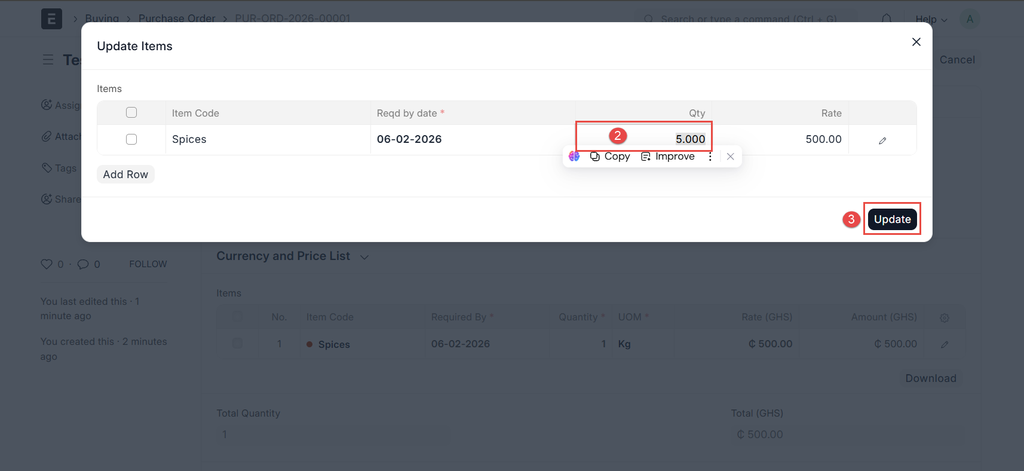
Step 4: Update the Changes
After making changes:
- Click Update
- ERPNext applies the updates to the submitted PO
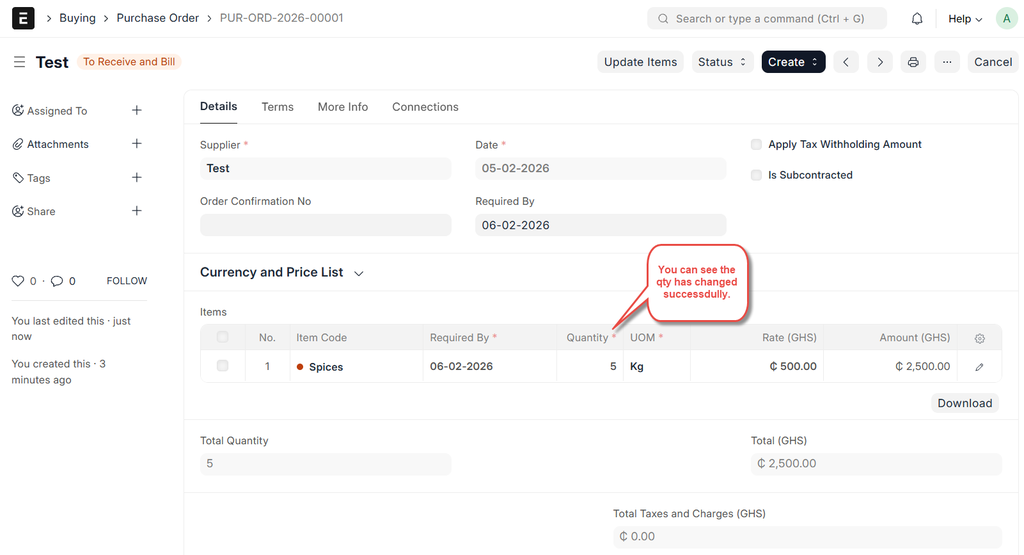
Important Notes and Limitations
- Updates are tracked internally by ERPNext
- Changes may affect:
- Stock commitments
- Supplier expectations
- If a Purchase Receipt or Purchase Invoice already exists:
- ERPNext may restrict certain edits
- Quantity reductions may be blocked
When You Should Use Amend Instead
Use Amend instead of Update when:
- You need a full audit trail
- The PO has already been acted upon significantly
- Your internal policy requires formal revisions
Best Practice Recommendations
- Use Update for quick corrections before receipt or invoicing
- Communicate PO changes to suppliers immediately
- Use workflow controls to restrict who can use Update
- Avoid frequent changes after supplier confirmation
Summary Table
| ScenarioRecommended Action | |
| Minor quantity or rate change | Update |
| Add or remove item | Update |
| PO already received/invoiced | Amend or adjust via PR/PI |
| Formal revision required | Amend |
| Audit-sensitive environment | Workflow + Amend |
No comments yet. Login to start a new discussion Start a new discussion